
10 WhatsApp Booking Message Templates for Hong Kong Service Businesses
Copy and adapt ten WhatsApp messages for booking enquiries, links, deposits, confirmations, reminders, rescheduling, arrival details, weather and follow-up.
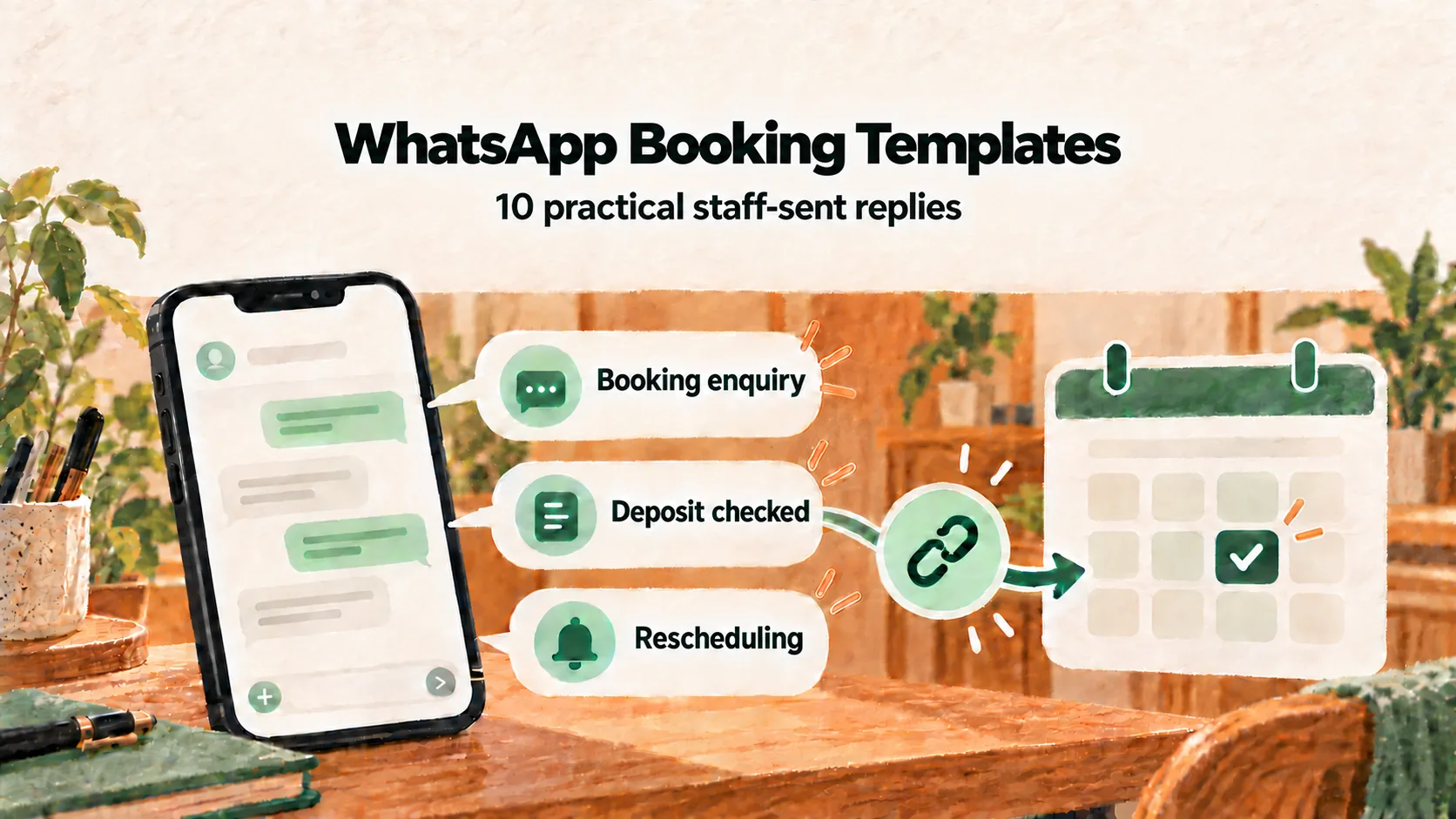
Use these ten WhatsApp booking message templates to move customers from an enquiry to the right booking step without rewriting the same reply each time. Replace the square-bracketed details, check the policy and appointment information, then have a staff member send the message.
These are editable examples for staff to send or save as quick replies. They are not pre-approved WhatsApp Business Platform API templates, and Kalendars does not send them automatically.
For many Hong Kong nail studios, salons, beauty businesses and personal trainers, WhatsApp is where a booking begins. It is also where staff can lose hours repeating the same conversation:
“Do you have a slot on Saturday?”
“Yes, 2 pm and 5 pm are free.”
“I’ll take 2 pm.”
“Sorry — another customer booked it while we were messaging.”
A booking link shortens that exchange. Customers can check your current services, prices, staff and availability before choosing a slot. Your team still handles questions that need a human answer, but routine scheduling no longer has to happen one message at a time.
Save the messages below as WhatsApp Business quick replies or in your team’s reply library. Replace every item in square brackets before sending. If you use Kalendars, staff can also open a prepared WhatsApp message from the booking record, check it, send it themselves and mark it as sent.
Ten booking messages you can copy and adapt
Template 1: Send a new customer to your booking page
Hi! Thanks for contacting [business name] 😊
You can see our latest services, prices and available times here: 👉 [booking link]
Choose your service, preferred team member and time on the page. If you have a special request, send it to us here before booking and we’ll help.
Template 2: Reply while you are serving another customer
Hi! We’re with a customer at the moment, so we may take a little longer to reply.
You can check the available times and make a booking here: 👉 [booking link]
We’ll read your message as soon as we finish the current appointment. Thank you for your patience 🙏
Template 3: Explain the temporary hold and deposit
Thanks for making a booking. We’ve temporarily held this slot for 15 minutes:
📅 [date and time] ✨ [service] 👤 [team member, if applicable]
Please pay the HK$[amount] deposit using the FPS ID, phone number or PayMe link shown on the booking page, then submit the transfer reference there before the hold expires. The money goes directly to our business account.
Our staff will check the transfer and accept the booking before it is confirmed. The deposit will be deducted from your bill on the day of your appointment.
For a fuller deposit workflow and sample terms, see How to Take Booking Deposits with FPS or PayMe.
Template 4: Confirm a deposit after staff have checked it
We’ve checked your HK$[amount] deposit and your booking is now confirmed 🎉
📅 [date and time] ✨ [service] 📍 [full address] 🚇 [nearest MTR exit or directions]
If you need to change the appointment, please tell us by [rescheduling deadline]. We look forward to seeing you.
Template 5: Send a reminder before the rescheduling deadline
Hi [customer name]! A quick reminder about your appointment with [business name]:
⏰ [date and time] 📍 [address]
If your plans have changed, please WhatsApp us before [deadline] so we can help you reschedule under our booking policy. See you soon ✨
This is sent by a staff member. Kalendars prepares the message from the booking details; it does not automatically send a WhatsApp reminder on the shop’s behalf.
Template 6: Share arrival instructions on the day
Good morning, [customer name] — see you today!
When you arrive at [building name], take the lift to [floor], turn [left/right] and ring [doorbell or unit]. If you arrive early, please [waiting instructions].
WhatsApp us here if you have trouble finding the entrance.
Template 7: Help a customer reschedule
Thanks for letting us know, [customer name]. We understand that plans can change.
Under our booking policy, your HK$[amount] deposit can be carried forward once if the new appointment is within [number] days.
Check the latest times here and send us your preferred option: 👉 [booking link]
Template 8: Announce a typhoon or Black Rainstorm closure
Important update from [business name]: for everyone’s safety, we will be closed today because of the [Typhoon Signal No. 8 / Black Rainstorm Warning].
We will preserve the deposits for all affected bookings. Our team will contact each customer to arrange a new time after conditions improve.
Please stay safe, and thank you for your understanding.
Template 9: Send service-specific aftercare
Thank you for visiting [business name] today, [customer name]!
Your aftercare notes: • [instruction one] • [instruction two] • [what to do if there is a concern]
If you have a question about today’s service, reply here and our team will help during business hours.
Keep aftercare within your team’s professional scope. For medical or regulated services, use guidance approved by the relevant practitioner.
Template 10: Invite a returning customer to book again
Hi [customer name]! It has been about [number] weeks since your last [service]. If you’re ready for your next visit, you can see the latest availability here: 👉 [booking link]
If you are unsure which service to choose, tell us what you need and we’ll point you in the right direction. We’d love to see you again.
Make the templates work for your team
Before adding these messages to your quick replies, agree on four details:
- Who sends each message? Assign deposit checks and next-day reminders to a named role or shift.
- What is your deadline? Use the same cancellation and rescheduling cut-off on the booking page and in WhatsApp.
- What must staff check? A prepared message can still contain the wrong date, address or policy if nobody reviews it.
- Where is follow-up recorded? After sending from WhatsApp, mark the booking as followed up so another colleague does not send the same message again.
Studios can pair these replies with the workflows in the Nail and Lash Studio Booking Guide. Hair businesses can adapt the timing in the Salon and Barbershop Scheduling Guide.
Frequently asked questions
What should a deposit message include?
State the held date and time, service, deposit amount, 15-minute hold, payment method and where the customer must submit the transfer reference. Make it clear that staff will check the business account before accepting the booking.
When should we send a booking reminder?
Send it early enough for your cancellation policy to be useful. If customers may reschedule without losing their deposit up to 24 hours beforehand, send the reminder before that deadline rather than after it.
Does Kalendars automatically send WhatsApp messages?
No. A staff member opens the prepared message from the booking, checks it, sends it in WhatsApp and marks it as sent. This keeps the final wording and timing under the business’s control.
Turn repeated chats into a simple booking path
The goal is not to remove human service from WhatsApp. It is to give routine enquiries a clear next step, while leaving your team more time for requests that need judgment.
For help choosing the rest of your booking setup, read the Hong Kong Online Booking System Comparison. Ready to organise booking links, staff follow-up and local deposits in one flow? Apply for Kalendars.
Make online booking part of your business
Let customers book and reschedule online while your team manages appointments and in-store payments in one place.
Get startedRelated reading
Calendly Alternatives for Hong Kong Service Businesses: What to Compare
Decide whether Calendly or a service-business alternative better fits your Hong Kong workflow by testing deposits, WhatsApp follow-up, staff, rooms and equipment.
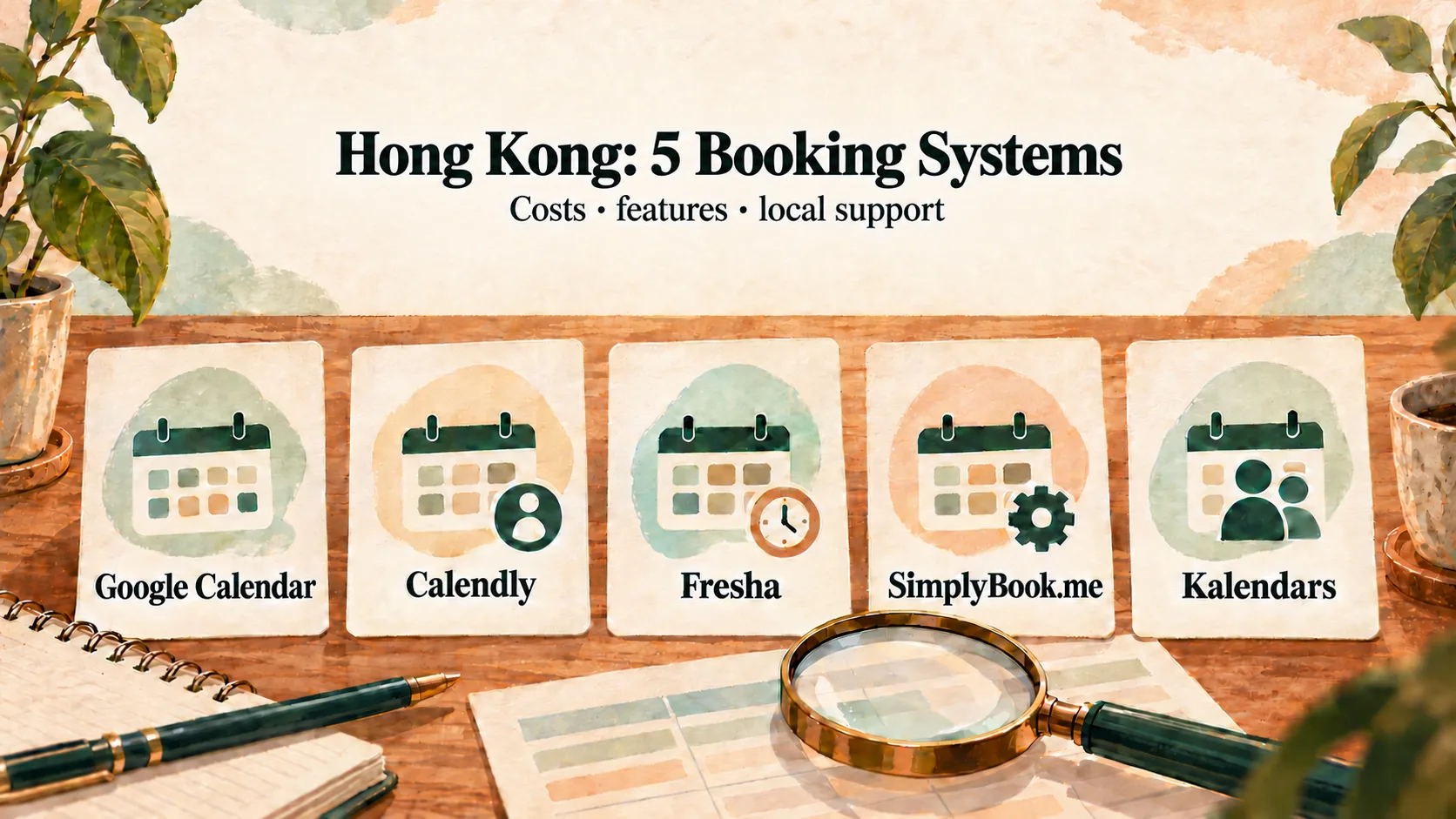
Online Booking Systems in Hong Kong: Compare Five Approaches
Compare Google Calendar, Calendly, Fresha, SimplyBook.me and Kalendars by deposits, reminders, staff, facilities, pricing structure and data portability.